Application Layout
Enterprise Portal Application Layout
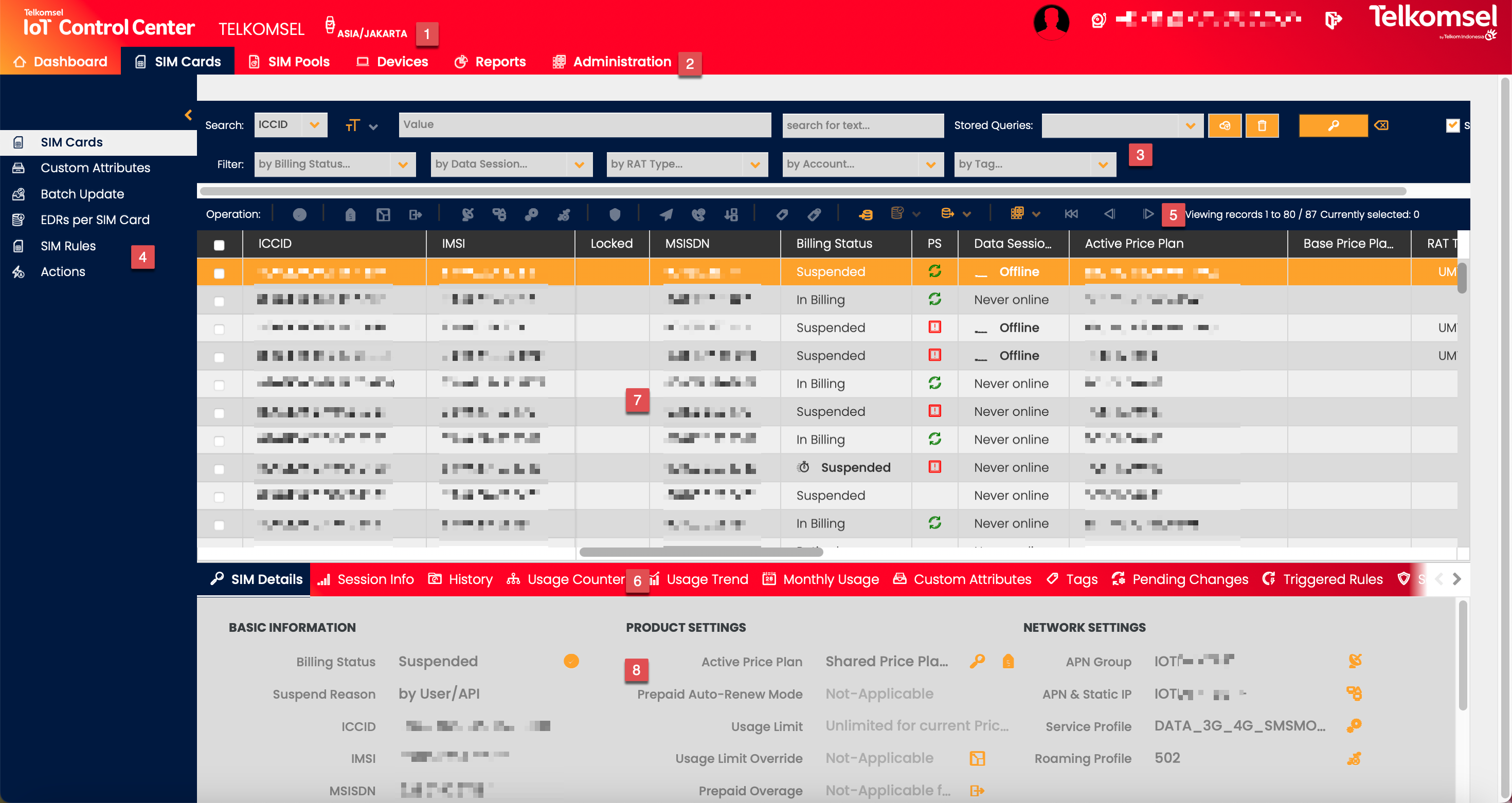
The layout of the Enterprise Portal consists of the Heading Bar, 4 Menu Bars, a search field, and two areas to display Objects and their details.
Heading Bar
The Heading Bar(1) displays the Organization name and access to the Profile management options.
- Logo (far left heading bar)
- Context: Root/Account/Customer (right of the logo)
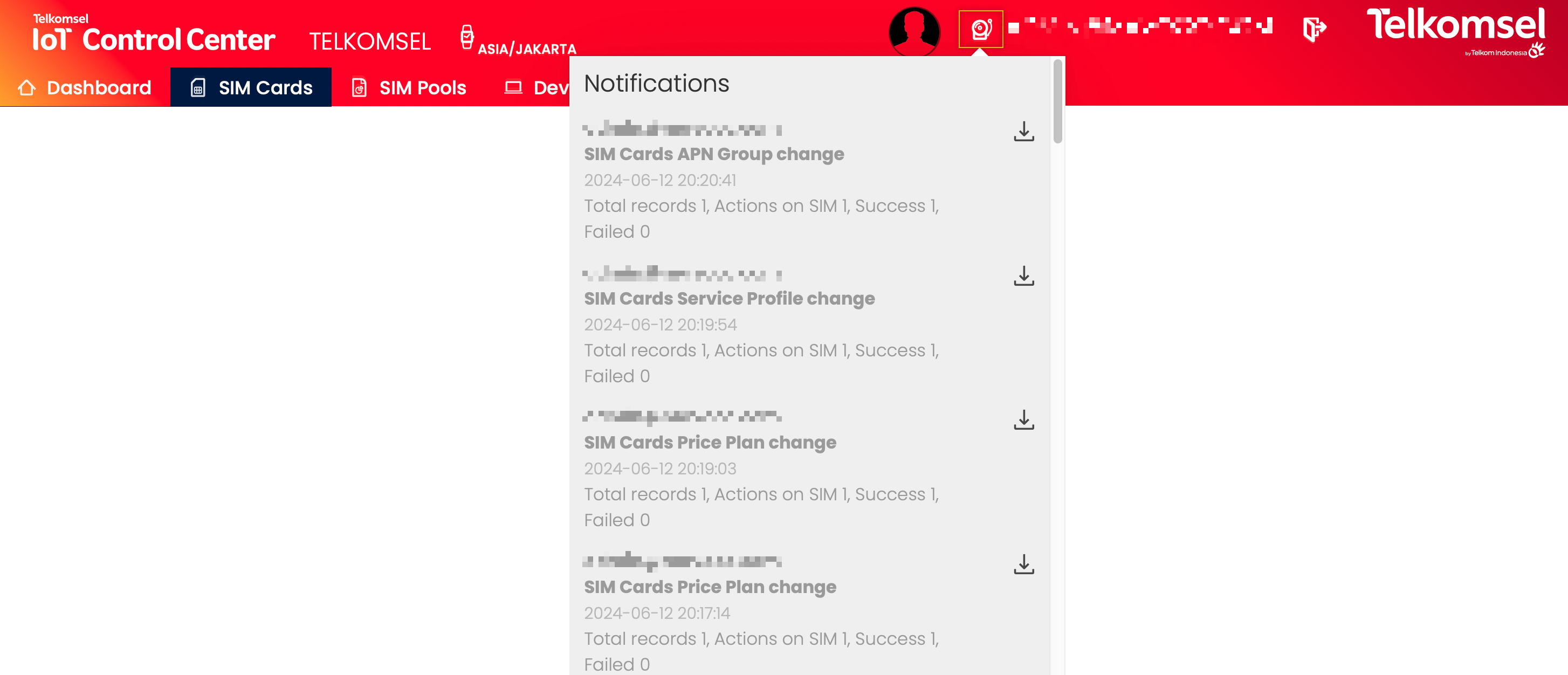
- Notifications (left of Profile)
- Profile (left of profile picture)
- Profile Picture (far right heading bar)
*CSP Time Zone
CMP allows to the definition of a CSP-specific Time Zone that may differ from the UTC Time Zone. If a specific CSP Time Zone is being used, various CMP processes and functions (e.g. Rating and Billing, Usage Counters, Usage Information, display of dates, and timestamps) are aligned with that CSP Time Zone.
All dates and timestamps shown in the CMP are in the CSP Time Zone.
Menu Bars
The Main Menu Bar(2) and Side Menu Bar(4) allow Users to navigate through the various modules and subtopics of the Enterprise Portal.
The Object Functions Menu(5) and Extended Details Menu Bar(6) are specific to the one, or multiple, Objects selected in the Object Grid.
Main Menu Bar allows you to select which of the Enterprise Portal's modules to display.
Note:
The list of modules displayed on your User Account may differ from the list shown here.
- Dashboard
- SIM Cards
- SIM Pools
- Devices
- Reports
- Account (only visible in Account context)
- Administration
Side Menu Bar displays subtopics specific to the module selected in the Main Menu Bar.
Object Functions Menu contains tools that have an effect on the selected Object(s), such as editing details or adding/deleting Object(s).
Note:
The Object Functions Menu may be displayed in a horizontal orientation or in a vertical orientation.
Extended Details Menu Bar contains options that offer a deeper look into the usage history as well as a comprehensive view of the information attributed to the selected Object(s).
Object Search Field
At the top of each module page, is an Object Search Field(2) to aid in locating specific Objects. Some of the modules have additional Search field options and Filters to further specify search results.
Object Display Areas
The Object Grid(7) is the list of Objects such as SIM Cards, Devices, or Accounts.
The Object Grid is populated with the Objects which are related to the selected module.
Example:
- SIM Cards module displays SIM Cards (SIM Grid)
- Device module displays Devices (Device Grid)
- Rules module displays Rules (Rules Grid).
The Extended Details Panel(8) displays information about the selected Object(s) based on the option selected from the Extended Details Menu Bar.
Select an Object to Display Data
Click the box next to one, or multiple rows to select one or many Object(s).
- The most recent information about the selected Object(s) will appear in the Extended Details Panel.
- The available options in the Object Functions Menu and Extended Details Menu Bar will become active for the selected Object(s).
If multiple Objects are selected, only the options allowed for all selected objects will become active in the Object Function Menu and Extended Detail Menu Bar.
Updating an Object
In order to fetch the real-time information of an Object such as a SIM Card, reselect it by clicking again into the box at the beginning of the Object's row.
Enterprise Portal Notifications
The Enterprise Portal's Notifications area informs Users about the results of actions performed in the Enterprise Portal, such as Batch Updates, Price Plan Changes, and so on.
If a failure happens, the failure reason is presented if possible (e.g. SIM Card Batch Update - Invalid File).